
Track Recurring Google Business Posts with UTM + GA4 for Contractors
Google Business Profile posts are short, free updates that let you push offers, events, and timely news directly into Search and Maps results for your business. They show up right where homeowners are already looking, next to your reviews and hours. Post at least once a week, and tag every link with UTM parameters so you can track what actually turns into calls and bookings.
TL;DR:
- Posting weekly updates and monthly offers with specific landing pages and UTM tags increases tracking accuracy and engagement results.
- Genuine, recent images of actual work outperform stock photos, and front-loading key information within the first 80 characters boosts visibility on mobile.
- Using native scheduling or third-party tools streamlines multi-location posting, but thorough review of features like approval workflows and UTM support is essential.
- Posts can be rejected for contact info in the body, duplicate content, or low-quality images, so maintaining unique, relevant content improves approval rates.
- Regularly deleting outdated posts and conducting quarterly profile audits help keep your profile fresh and avoid visibility issues.
Table of Contents
- What are Google Business Posts and where do they appear?
- How do you create, schedule, and manage a post?
- How do you optimise post copy, images, and CTAs?
- Should you use scheduling, recurring posts, or a third-party tool?
- How do you measure whether your posts are working?
- Why do posts get rejected, and how long do they stay live?
- A quick-start checklist for trades and home-service SMBs
- Why Google Business Posts still matter heading into 2026
- How OnLead handles Google Business posts for contractors
- Where to go for the official rules
- Sources
- FAQ
What are Google Business Posts and where do they appear?
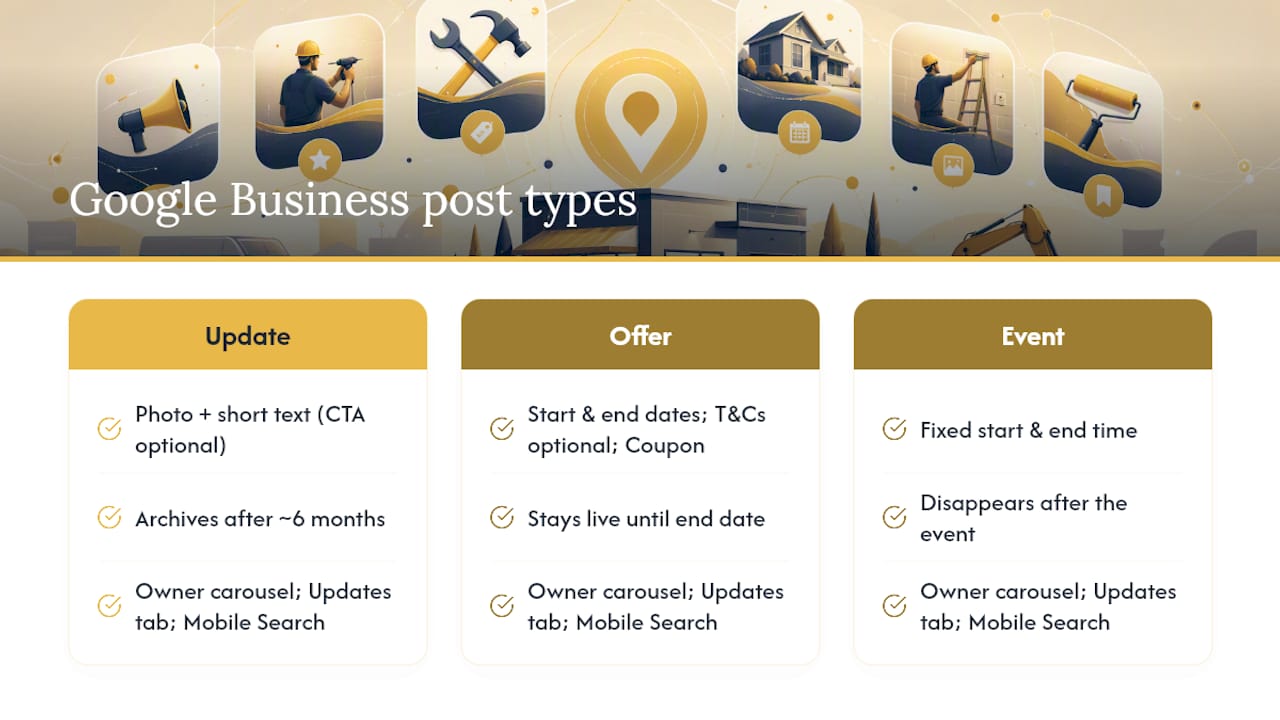
Google Business Profile posts come in three flavours: Update, Offer, and Event. Each one has its own required fields, its own lifespan, and its own spot in the customer’s view of your profile.
An Update post is your general-purpose tool. Use it for news, a finished job photo, a seasonal reminder, or anything that doesn’t fit a promotion or a scheduled event. It needs a photo, a short text block, and an optional CTA button.
An Offer post is built for a discount, a package deal, or a limited-time promo. It supports a start and end date, optional terms and conditions, and a coupon code field.
An Event post announces something with a fixed start and end time, a webinar, a sale weekend, or an open house.
Duration varies by type. Update posts archive after roughly six months, Offers stay live until their listed end date, and Events disappear once the event wraps. All three can surface in the “From the owner” carousel on your profile, the Updates tab, and directly in mobile Search results, where photos and the first line of text get the most real estate.
How do you create, schedule, and manage a post?
Publishing a post takes about two minutes once you know the sequence. Here’s the full workflow, including where scheduling and multi-location tools fit in.
- Open your Business Profile through Google Search or the Business Profile manager and select Posts.
- Click Add post and choose your type: Update, Offer, or Event.
- Add a photo (720×720px minimum, JPG or PNG), write your copy, and attach a CTA button.
- Set a publish date and, if you want it to repeat, choose a recurring pattern (weekly, monthly, or custom).
- Review the preview on both desktop and mobile, then hit Publish.
- To edit or delete a live post, go back into Posts, select the post, and choose Edit or Delete from the dashboard.
If you manage more than one location, the dashboard lets you duplicate a post across profiles you own, though the interface gets clunky past a handful of locations. That’s the point where the Google Business Profile API or a third-party scheduler starts to make sense. The API supports the same actions (create, patch, delete) plus CTA action types like BOOK, ORDER, SHOP, LEARN_MORE, SIGN_UP, and CALL, which is useful if you’re building your own multi-location publishing tool rather than clicking through each profile manually.
Pro Tip: Draft your post in a doc first and count characters before pasting it in. Google trims the visible text on mobile far sooner than you’d expect, and rewriting on the fly leads to weaker openers.
How do you optimise post copy, images, and CTAs?
The first 80 to 100 characters are the only part most people will read before deciding whether to tap. Google’s own 2026 best-practice guidance is explicit about front-loading the value in that window, because that’s roughly where mobile Search cuts the preview text. “Save $50 on furnace tune-ups through March” beats “We’re excited to announce our latest seasonal promotion” every time, because the second one buries the offer past the cutoff.
Photos matter more than most owners assume. Use real job-site photos, not stock imagery. A crisp square shot (1:1 aspect ratio works best across devices) of a completed roof or a clean van outperforms a generic graphic, and Google’s algorithm appears to favour posts with genuine, recent images when deciding what to surface.
For CTAs, always use the built-in buttons, Call Now, Book, Learn More, rather than typing a phone number into the post body, which Google’s guidelines flag as a violation. Match the CTA link to a landing page that mirrors the post’s promise; sending an “offer” click to your generic homepage kills conversions.
A practical weekly mix looks like this:
- One Update post highlighting a completed job or a seasonal tip.
- One Offer post per month tied to a specific service (furnace check, drain cleaning, roof inspection).
- One Event post around trade shows, open houses, or community sponsorships.
- Rotating content ideas: before/after photos, staff spotlights, safety tips, awards or certifications, customer questions answered, weather-related service reminders, referral programs, and seasonal checklists.
Pro Tip: Test an Offer post against an Update post covering the same promotion. BrightLocal’s guidance suggests conversion rates between post types vary noticeably by trade, and the only way to know which works for your business is to run both and compare.
Should you use scheduling, recurring posts, or a third-party tool?
Native scheduling and recurring posts rolled out broadly through 2025 and 2026, and they’ve cut a lot of the manual grind out of staying consistent. You can now set a publish date and time in advance, then choose a recurrence, weekly, monthly, or a custom pattern, so a “Tune-Up Tuesday” post goes out every week without you touching the dashboard again.
Multi-location businesses get a copy/publish workflow that pushes one post to several profiles at once, though Google caps how smoothly this scales for larger portfolios.
Before adopting a third-party scheduler or building against the API, check for:
- Genuine multi-location publishing, not just copy-paste across tabs.
- A content approval step if multiple staff members draft posts.
- Native support for all three post types and their specific fields (offer dates, event times).
- UTM tagging built into the link field, so you’re not adding it manually every time.
How do you measure whether your posts are working?
Business Profile Insights will show you views and overall clicks, but it won’t isolate how many of those clicks came from a specific post. That gap is the single biggest measurement blind spot in GBP marketing, and it’s why UTM tagging is the recommended workaround rather than an optional extra.
- Build a UTM string for every post CTA:
?utm_source=google&utm_medium=gbp_post&utm_campaign=spring_furnace_offer. - Paste the tagged URL into the CTA button field when you create the post.
- In GA4, go to Reports > Acquisition > Traffic acquisition and filter by
Session mediumcontaining “gbp_post.” - Cross-reference that segment against your conversion events (form fills, calls, booking completions) to see which posts actually drive action.
Insights aggregates all profile clicks into one number. Without UTMs, you’re guessing which post, if any, moved the needle. With them, you get a real conversion trail in GA4 tied to a specific post and date.
Why do posts get rejected, and how long do they stay live?
Posts move through three states: Live (visible to searchers), Pending (under review, usually resolved within a day), and Not approved (rejected, with a reason listed in the dashboard).
Common rejection reasons and fixes:
- Phone numbers or email addresses typed into the post body. Move contact info into the CTA button instead.
- Promotional language for regulated categories (certain financial or health claims) without required disclosures.
- Duplicate or near-duplicate content posted across too many profiles at once, which can trigger a spam flag.
- Low-quality or irrelevant images, swap for an original photo tied to your actual business.
Expired Offer and Event posts drop off automatically once their end date passes, but Update posts linger for months before archiving. Do a quarterly sweep and delete anything outdated or factually stale, especially old pricing.
A quick-start checklist for trades and home-service SMBs
Start with one weekly Update, one Offer post a month, and one proof post (a review shoutout or finished job) monthly. Pair every offer link with a service-specific landing page and a UTM tag before it goes live. A managed audit, the kind OnLead runs for contractors, typically flags missing CTAs and untagged links within the first review, which is usually the fastest fix on the list.
Why Google Business Posts still matter heading into 2026
Skeptics argue posts don’t move rankings directly, and they’re mostly right, posting is not a ranking factor on its own. What it does is reinforce the entity signals Google uses to understand and trust your business, and that consistency appears to matter more as AI Overviews pull from fresher, more active profiles. A weekly post costs you ten minutes. Compounded over a year, that’s a business profile that looks alive, current, and worth surfacing, next to a competitor’s that hasn’t posted since last spring.
— OnLead
How OnLead handles Google Business posts for contractors
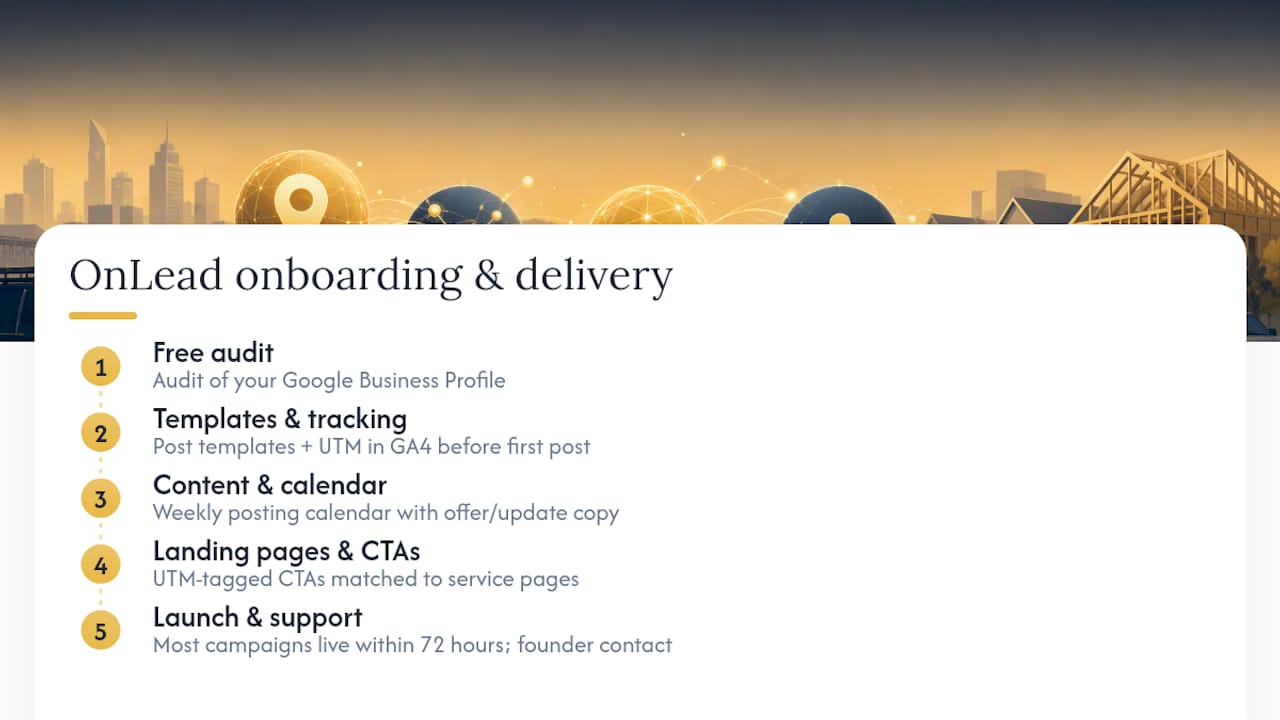
Running a weekly posting schedule on top of estimates, jobsite visits, and everything else on a contractor’s plate rarely survives past week three. OnLead builds the Google Business Profile posting calendar, writes the offer and update copy, sets up UTM tagging on every CTA, and matches each post to a landing page built for that specific service, all as part of the same engagement that covers your website and local SEO. A typical starter engagement begins with a free audit of your current profile, a set of post templates tailored to your trade, and UTM tracking wired into GA4 before the first post goes live. Most campaigns launch within 72 hours of sign-off, and you work directly with founder Vitalii rather than a rotating account team. If you want your profile posting consistently without adding it to your own task list, check out OnLead’s local services ads and profile management to see what a managed setup looks like.
Where to go for the official rules
For policy changes, always check Google’s own Business Profile help and the developer API docs first.
Sources
- Create & manage posts on your Business Profile
- Google Posts: How to create better Google Business Profile updates
FAQ
How do you do a Google Business post?
Open your Business Profile, select Posts, choose Update, Offer, or Event, add a photo and short text with a CTA button, then publish. You can schedule it or set a recurring pattern instead of publishing immediately.
What is Google’s 20% rule?
There’s no confirmed, official “20% rule” tied to Google Business posts. If you’ve seen this claim elsewhere, treat it cautiously since Google’s own help documentation doesn’t define such a threshold.
Is it free to post a business on Google?
Yes. Creating a Google Business Profile and publishing posts costs nothing; Google only charges for separate advertising products like Local Services Ads or Google Ads.
What are Google Business Profile posts?
They’re short updates, offers, or event announcements that appear directly on your business’s Search and Maps listing, letting you promote timely news without waiting for a website update. Businesses that want a managed version of this, paired with tracked landing pages, can look at OnLead’s lead generation services for a done-for-you setup.